
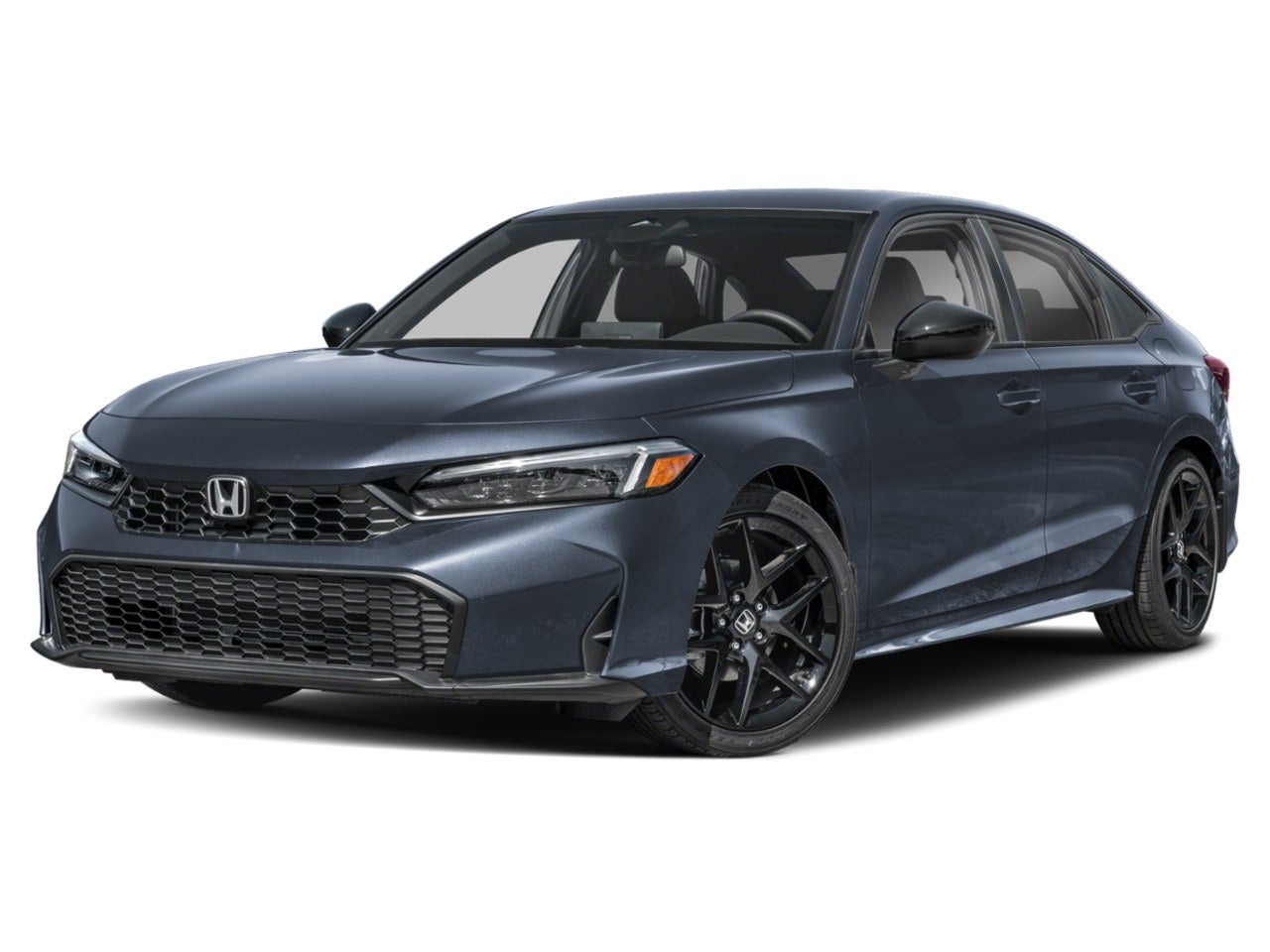
A new Civic Sedan feels fully yours once your phone connects on its own when you start the car. Pairing takes a few minutes, but a few small details trip people up, and they're easy to sort out once you know where to look. Here's how we walk drivers through it at North Shore Honda in Glen Head.
Get Ready Before You Sit Down
Most pairing headaches start before anyone touches the screen. A phone on old software, a Bluetooth list crowded with forgotten earbuds and rental cars, or a battery saver that throttles connections can stall the whole process. Spend a couple of minutes on your phone first, and the car side goes much faster.
- Update your phone's operating system to the latest version
- Turn Bluetooth on and keep the phone unlocked during setup
- Switch off low-power or battery-saver mode for now
- Grab a good-quality USB cable if you plan to use CarPlay or Android Auto
In the car, shift into Park and turn the power on. You can leave the engine running or not. Many setup menus lock out while the car is moving. That's a safety feature, not a glitch.
Pairing from the driver's seat with the car parked means you won't hit a lockout halfway through. It also helps to do this somewhere quiet, not in a busy parking lot where other Bluetooth devices crowd your phone's list. Your driveway is perfect. A calm first pairing usually means the connection stays reliable from then on.
Pairing Over Bluetooth, Step by Step
Bluetooth is the foundation. It carries your calls, plays audio and lets the car read your contacts. Once it's set up, everything else builds on it.
- From the home screen, open Settings or the Phone menu
- Choose Bluetooth or Connections, then select the option to add a new device
- On your phone, open Bluetooth settings and tap the Civic when it appears
- Check that the code on your phone matches the one on the car's screen, then confirm on both
- Approve the requests for contacts and message access when your phone asks
Menu wording can shift a little between model years and software updates. If the exact words don't match, look for the closest one. Phone, Connections and Bluetooth all lead to the same place.
Making It Automatic
After that first pairing, the Civic should find your phone shortly after you start the car. If it doesn't, open the device list in the car and make sure your phone is set to connect automatically. On iPhone and Android, you can also give the car an easy name in your Bluetooth settings, which helps when a household has more than one vehicle. Getting automatic reconnection right is what makes the system feel effortless every morning.
Apple CarPlay and Android Auto
Bluetooth handles calls and audio. Phone projection goes further. It puts your maps, music apps and messaging on the car's screen in a layout you already know from your phone, and many drivers end up using it on every trip.
For a wired connection, plug your phone into the USB port meant for data. Some ports only charge, so if nothing happens, try another one before blaming the phone. Your phone will ask permission the first time, and the car may ask whether to enable CarPlay or Android Auto. Say yes to both.
Wired or Wireless?
Where wireless projection is available, setup usually starts with a short Bluetooth handshake or a one-time cable connection. After that, the phone can stay in your pocket. Whether a particular Civic connects wirelessly is worth checking in the car itself, and you can bring your own phone when you book a test drive to try it.
The tradeoff is simple. A cable keeps your battery topped up, while wireless saves a step on quick errands. On a long run down the LIE or the Northern State with navigation and streaming going, the cable often wins because the phone arrives charged instead of drained.
Contacts, Texts and Permissions
A common complaint goes like this: the phone pairs and calls work, but the contact list is empty or texts never show up. That's nearly always a permission setting on the phone, not a problem with the car.
On an iPhone, open Bluetooth settings, tap the small info icon next to the Civic, and turn on contact syncing and notifications. Android phones bury the same choices under the device's settings in the Bluetooth menu, usually labeled contact sharing and message access. Once they're on, give the car a minute to download your phonebook before you decide it failed.
Using It Without Looking Down
After contacts sync, the steering-wheel controls and voice button become much more useful. You can call someone by name or have an incoming text read aloud without taking your eyes off the road. Saying a full name the way it's saved in your phone works more reliably than a nickname.
If you'd rather keep some things private, you can leave message access off and still use calls and audio. You control what the car can see, and you can change these settings anytime from your phone without pairing again.
Fixing the Usual Snags
Connection trouble tends to fall into a handful of patterns, and most of them take less than a minute to fix. Run through these before assuming something is wrong with the car.
- Connected but no sound: check the audio source on the screen and set it to Bluetooth or your projection app
- Won't reconnect: delete the Civic from your phone and your phone from the Civic, then pair fresh
- CarPlay or Android Auto won't launch: swap the cable first, since worn or cheap cables are the top culprit
- Random dropouts: turn off battery saver and make sure the app isn't restricted in the background
- Wrong phone connects: set your phone as the priority device in the car's device list
A restart helps more often than you'd expect. Turn the car off, open and close the driver's door, and restart your phone too. That clears small glitches on both ends.
If the connection still drops after all that, book a service visit and mention it when you schedule. Our technicians can check whether the infotainment system needs a software update and confirm the USB ports are working. That's a far better use of your time than a weekly re-pairing routine.
Sharing the Car and Getting Help
Households with more than one driver can pair several phones. The car usually connects to whichever device it finds first or the one marked as the priority. If you and a partner trade off the Civic, set priorities so the right phone takes over without a tug-of-war over the stereo.
When you sell or trade a car, delete your phone from its device list. It holds call history and synced contacts, and clearing them takes a moment. Remove the car from your phone's Bluetooth list too, so nothing tries to reconnect later.
Help From Our Team
The LX, Sport and Sport-L share the same goal when it comes to your phone: making calls, music and directions easy to reach. If you're comparing trims, try your own phone in each one. That tells you more than any brochure can.
We run North Shore Honda on a fair, easy, honest and sincere approach, and that extends to helping you get comfortable after delivery. If you're stuck on a setting at home, reach out to our team and we'll walk you through it, or we can go over it in person at your next visit.
Glen Head, NY
- Prep your phone first: update its software, clear out old Bluetooth devices and keep it unlocked while you pair.
- Bluetooth handles calls and audio, and CarPlay or Android Auto puts your phone's apps on the car's screen.
- Most dropouts come from permissions, a bad cable or old device entries, not a broken car.